On your Mac, not the cloud
Your voice is transcribed by a local AI model on your Mac. The audio never leaves your machine — nothing uploaded, nothing stored online.
Press a shortcut, say what you mean, and wispen.ai drops clean, finished text wherever your cursor is — email, notes, code, chat.
can you push the sync to thursday and let marketing know we'll be a bit late
Can you push the sync to Thursday, and let Marketing know we'll be a bit late?
Press your shortcut, say your sentence, and the text lands right at your cursor.
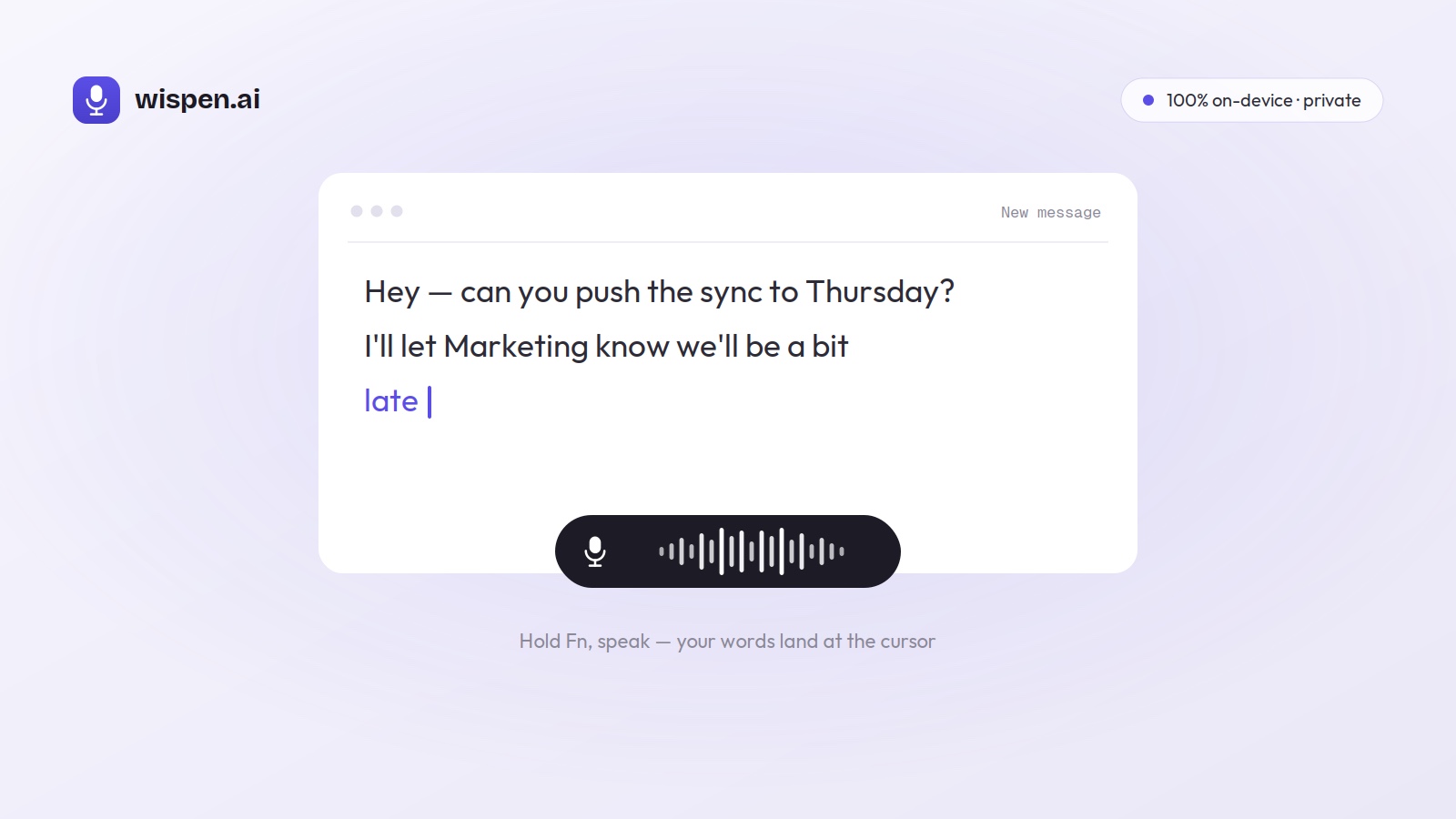
Your voice is transcribed by a local AI model on your Mac. The audio never leaves your machine — nothing uploaded, nothing stored online.
Hold the Fn key, speak, and text drops in wherever your cursor is — mail, Slack, your editor, any text field.
Recording starts the instant you press, so nothing gets clipped. Release the key and your words appear.
Say “question”, “enter” or “smiley” to punctuate, send, or add an emoji — without touching the keyboard.
Dictate in the language you think in. wispen detects it automatically, or lock to one for sharper short phrases.
A quiet indicator shows it's listening, background sound dims so it won't bleed into the mic, and focus never leaves what you're doing.
Click the button above to grab the latest wispen.ai disk image.
Open the .dmg and drag the wispen.ai icon into your Applications folder.
Launch wispen.ai from Applications. On first run, right‑click the icon and choose “Open”, then allow microphone access and grant Accessibility access in System Settings (needed to type into your apps).
Place your cursor anywhere you type, hold the Fn key, and speak — your words appear as text when you let go.
On first launch, wispen downloads its speech model once (a few hundred MB), then runs offline.
Yes. Transcription runs on a local AI model on your Mac, and your audio never leaves your machine — nothing is uploaded or stored online.
Yes. After a one-time download of the speech model, wispen transcribes fully offline — no internet needed.
Accessibility lets wispen paste the recognized text into whatever app is active and detect the dictation key. It's used for nothing else.
Dozens of languages. wispen can auto-detect the one you speak, or you can lock it to a single language for sharper short phrases.
Yes — wispen is free to download and use.
On the first launch, right-click wispen in your Applications folder and choose “Open”. After that, it opens normally.
Join the people who write their email by talking. wispen.ai is free to start.
If nothing happens, use the button below to download wispen.ai for macOS.
Download .dmgIt looks like you're not on a Mac right now. Wispen.ai runs on macOS only.